
| Prerequisites | ||
| Multi-factor Authentication | ||
| Patched Windows 10 version 21H2 or patched Windows 11 and later | 10 21H2, KB5010415 must be installed. | |
| Windows 11 21H2, KB5010414 | ||
| Fully patched Windows Server 2016 or later Domain Controllers | Windows Server 2016, KB3534307 | |
| Server 2019, KB4534321 | ||
| Azure AD Kerberos PowerShell module | Install-Module -Name AzureADHybridAuthenticationManagement | |
| Deployment Instructions | ||
| 1. Set up Azure AD Kerberos in your hybrid environment. | ||
| Passwordless security key sign-in to on-premises resources – Azure Active Directory | Microsoft Docs | ||
| Create a Kerberos Server object | ||
| View and verify the Azure AD Kerberos Server |
|
|
| 2. Configure Windows Hello for Business policy and deploy it to devices. | 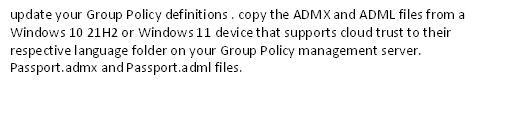 |
|

|
||
| Create the Windows Hello for Business Group Policy object | ||
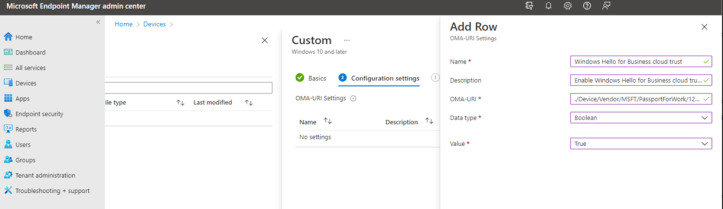
| using Intune device configuration policy. | ||
| Create a user Group that will be targeted | ||
| Enable Windows Hello for Business | ||
| Configure Cloud Trust policy | ||

How to proceed
Planning a Windows Hello for Business Deployment | Microsoft Learn
There are six major categories you need to consider for a Windows Hello for Business deployment. Those categories are:
- Deployment Options
- Client
- Management
- Active Directory
- Public Key Infrastructure
- Cloud
First you need to decide the method that you want to use.
Windows Hello for Business planning worksheet (microsoft.com)
In our scenario we will be using the
Cloud Kerberos trust policy
Passwordless security key sign-in to on-premises resources – Microsoft Entra | Microsoft Learn
Just run the following script on the Domain controller
# Specify the on-premises Active Directory domain. A new Azure AD
# Kerberos Server object will be created in this Active Directory domain.
$domain = $env:USERDNSDOMAIN
# Enter an Azure Active Directory global administrator username and password.
$cloudCred = Get-Credential -Message ‘An Active Directory user who is a member of the Global Administrators group for Azure AD.’
# Enter a domain administrator username and password.
$domainCred = Get-Credential -Message ‘An Active Directory user who is a member of the Domain Admins group.’
# Create the new Azure AD Kerberos Server object in Active Directory
# and then publish it to Azure Active Directory.
Set-AzureADKerberosServer -Domain $domain -CloudCredential $cloudCred -DomainCredential $domainCred
View and verify the Azure AD Kerberos Server
Get-AzureADKerberosServer -Domain $domain -CloudCredential $cloudCred -DomainCredential $domainCred
Also Open the Active directory users and computers it shall look like this.

In deep dive flow this is how it shall look like
Hybrid Azure AD join authentication using Azure AD Kerberos (cloud Kerberos trust)
How Windows Hello for Business works – Authentication | Microsoft Learn

With Intune configuration you can also use the active directory Group policy
Manage Windows Hello in your organization (Windows) | Microsoft Learn
For Group Policy settings
Manage Windows Hello in your organization (Windows) | Microsoft Learn
Verify the tenant-wide policy.


Requirement Data
1. Deployment
- Deployment
- Trust Type
- Device Registration
- Key Registration
Directory
Synchronization
- Multifactor
- Authentication
2. Management
- Domain Joined
- Non-Domain Joined
3. Client
- Domain Joined
- Non-Domain Joined
4. Active Directory
- Schema Windows Server 2016
- Domain Functional Level Windows Server 2008 R2 or later
- Forest Functional Level Windows Server 2008 R2 or later
- Domain Controller
5. Public Key Infrastructure
- Certificate Authority Windows Server 2012 or later
- Registration Authority
- Certificate Templates Template Name Issued To
- Kerberos Authentication Certificate Domain Controllers
6. Cloud
- Azure Account
- Cloud Directory
- Azure AD Premium
Prepare people to use windows Hello.


Finally for troubleshooting
Referee to the following
Windows Hello for Business Deployment Known Issues | Microsoft Learn
 Microsoft Systems, Cloud and azure professionals