
- Introduction
- Terminologies
- Device Control Policies
- Prerequisites
- Planning
- Configuration
- Reporting
Introduction
This document provides a comprehensive guide on controlling removable media using Microsoft Defender for Endpoint. It covers essential terminologies, device control policies, prerequisites, planning, configuration, and reporting.
Terminologies
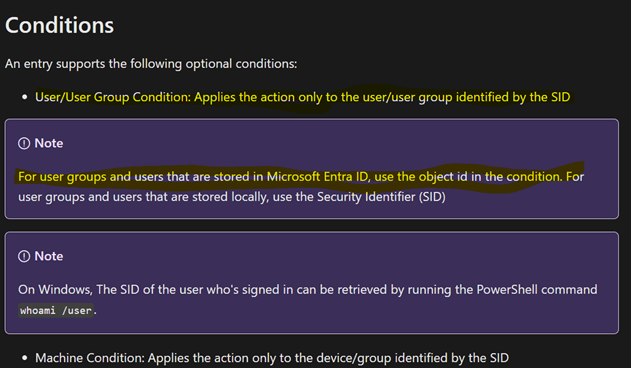
Conditions
• User/User Group Condition: Applies actions only to the user or user group identified by the SID.
Rules
• Included Groups: Groups that are explicitly included in the policy.
• Excluded Groups: Groups that are explicitly excluded from the policy.
Device control policies in Microsoft Defender for Endpoint – Microsoft Defender for Endpoint | Microsoft Learn
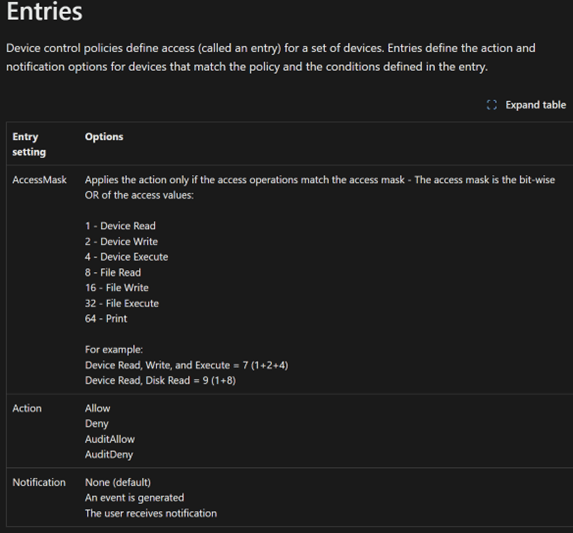
Entries
• Enforcement Entries: Allow/Deny actions.
• Audit Entries: AuditAllow/AuditDeny actions.
Entry Evaluation
Enforcement entries for a rule are evaluated in order until all requested permissions are matched. If no entries match a rule, the next rule is evaluated. If no rules match, the default is applied.
Policies
Device control policies in Microsoft Defender for Endpoint – Microsoft Defender for Endpoint | Microsoft Learn
A policy consists of a set of rules. It also includes groups. How rules and groups are defined varies slightly among management experiences and operating systems, as described in the following table.

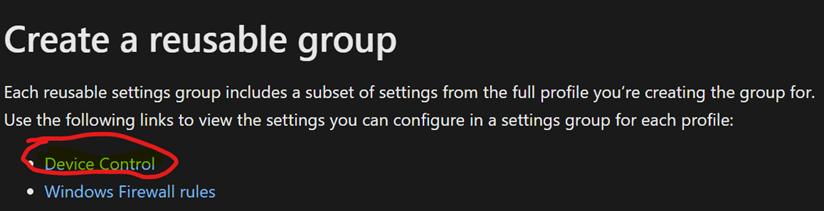
Reusable settings
group is a single object that can include multiple settings.
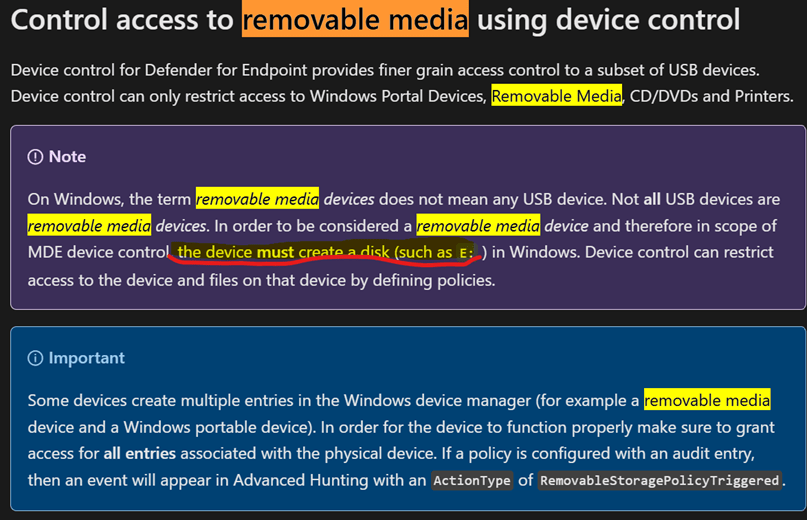
The following Is what s meant by removablemediadevices ID
Device control capabilities in Microsoft Defender for Endpoint enable your security team to control whether users can install and use peripheral devices, like removable storage (USB thumb drives, CDs, disks, etc.)
But when we mention removable media, we are talking about the device when creating a disk like E:
- Device Control Policies
Applicable Plans
• Microsoft Defender for Endpoint Plan 1
• Microsoft Defender for Endpoint Plan 2
• Microsoft Defender for Business
Device Control Capabilities
Device control capabilities in Microsoft Defender for Endpoint enable your security team to control whether users can install and use peripheral devices, such as removable storage (USB thumb drives, CDs, disks, etc.).
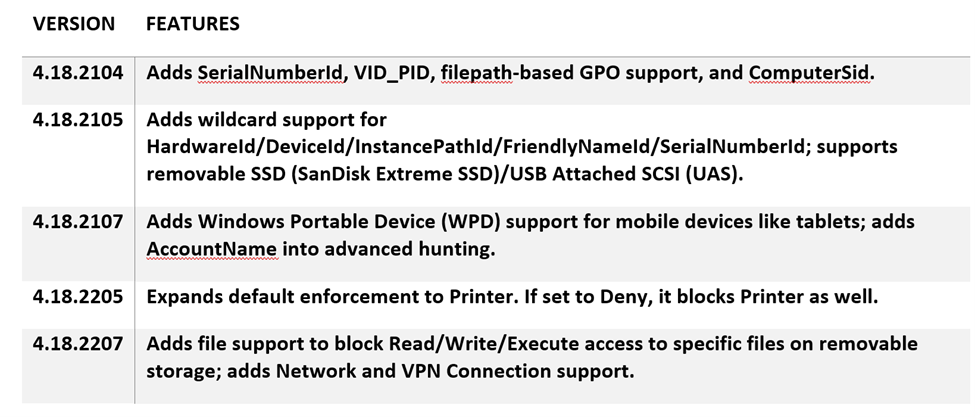
Specific features for defender versions
Device control in Microsoft Defender for Endpoint – Microsoft Defender for Endpoint | Microsoft Learn
VERSION FEATURES
| REQUIREMENT | DETAILS |
| OPERATING SYSTEM | Windows 10 or Windows 11 |
| ANTI-MALWARE CLIENT VERSION | 4.18.2103.3 or later |
| DEVICE ONBOARDING | Must be onboarded to Defender for Endpoint |
| SERVER SUPPORT | Currently not supported |
| SPECIFIC VERSIONS | Various updates from 4.18.2104 to 4.18.2207 adding support for different device types and functionalities |
Planning
Policy Implementation
Policies can be applied using Intune. A policy is a set of rules and groups. How rules and groups are defined varies slightly among management experiences and operating systems.
Example Policies
• Deny all removable media.
• Allow access for authorized USB devices.
• Allow different levels of access for different types of devices.
• Allow different levels of access for specific users or groups.
Device control walkthroughs – Microsoft Defender for Endpoint | Microsoft Learn
- Configuration
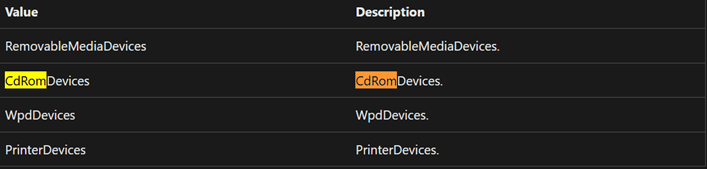
Primary ID
Removable media devices.
Defender CSP | Microsoft Learn
Device Control Walkthroughs
• Deny all removable media.
• Allow access for authorized USB devices.
• Allow different levels of access for different types of devices.
• Allow different levels of access to devices for specific users or groups.
Policy Structure
Include all removable devices and exclude authorized USBs and USB read permissions. Then create another inclusion for authorized USBs and read USBs with required permissions.
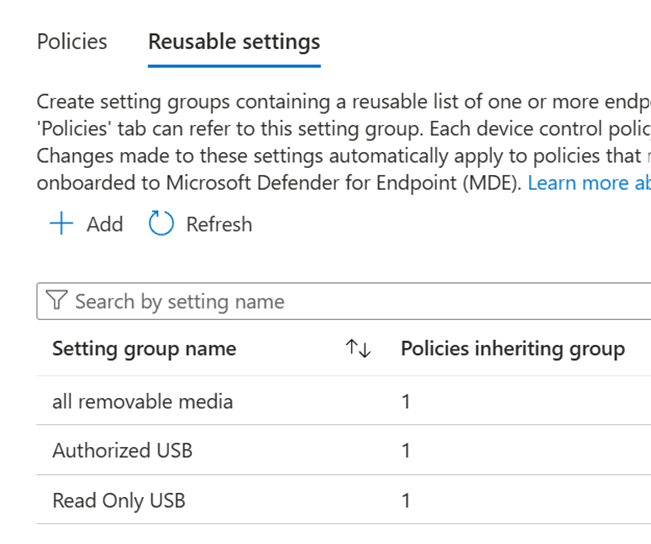
First create reusable settings
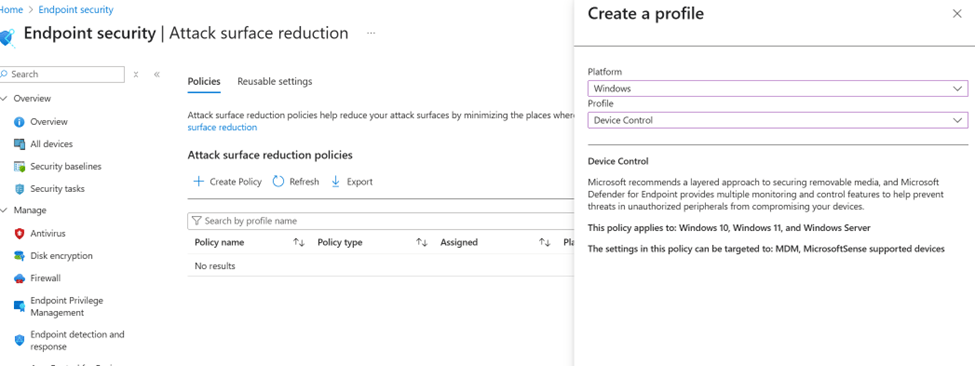
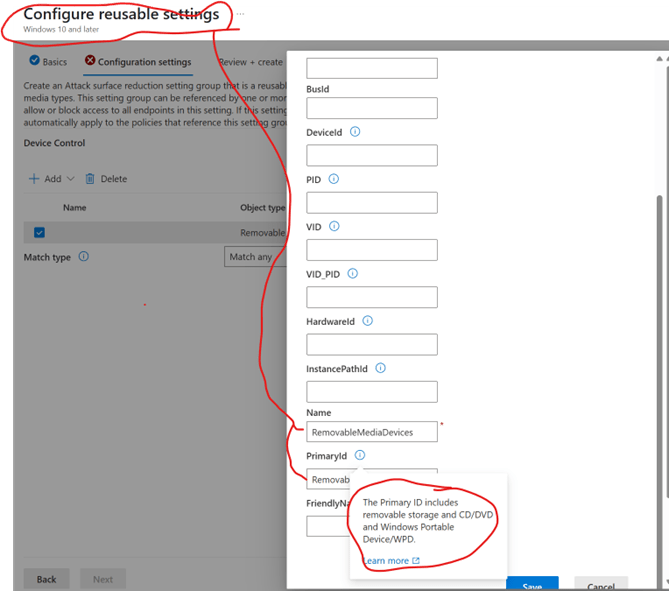
One for all devices and other 2 for exceptions
Then create a policy
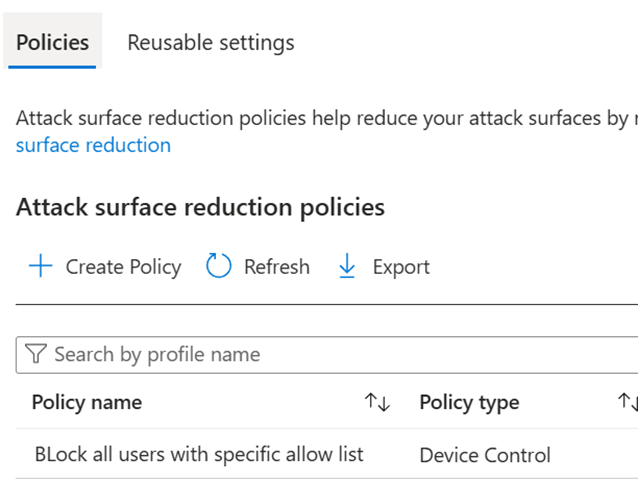
The end results shall be as the result
And give exceptions by group SID or more specific device PC SID
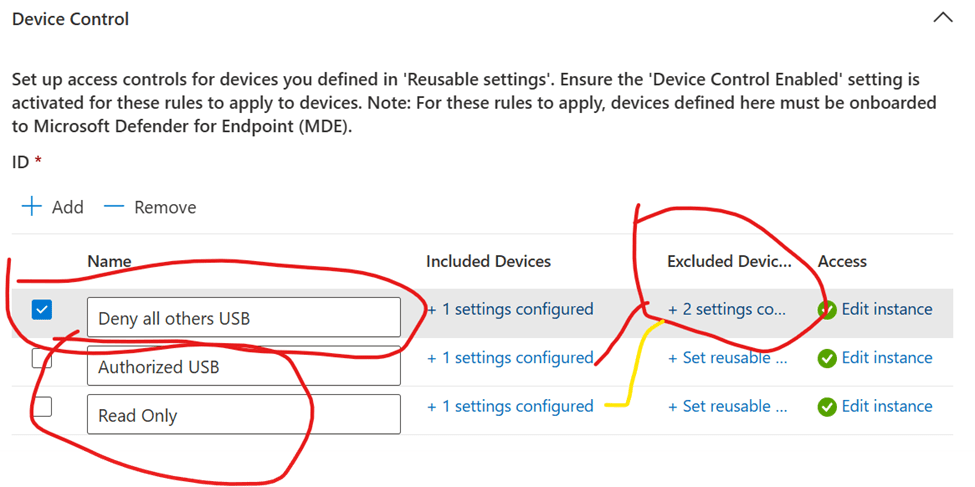
As in this design
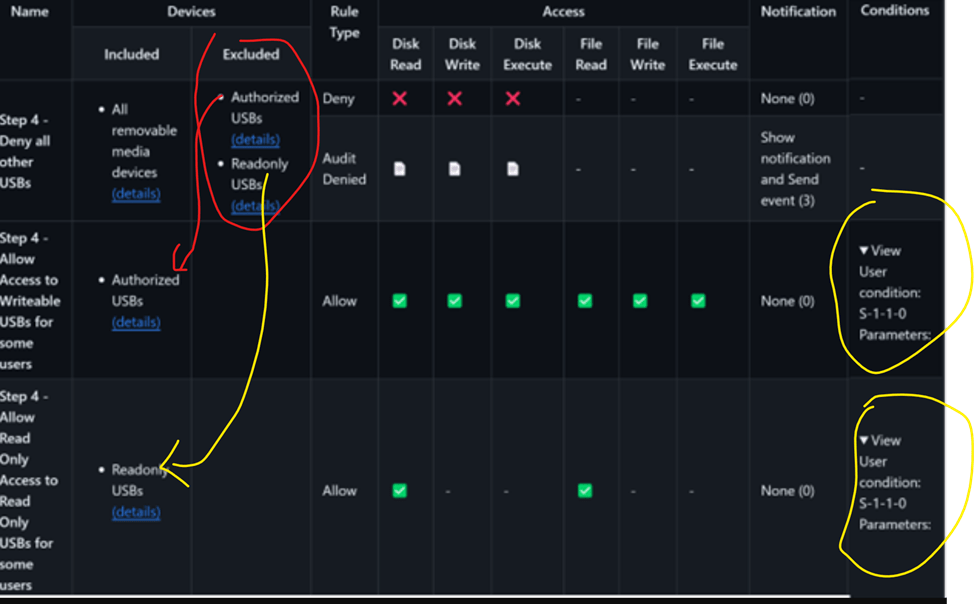
- Reporting
Security Center
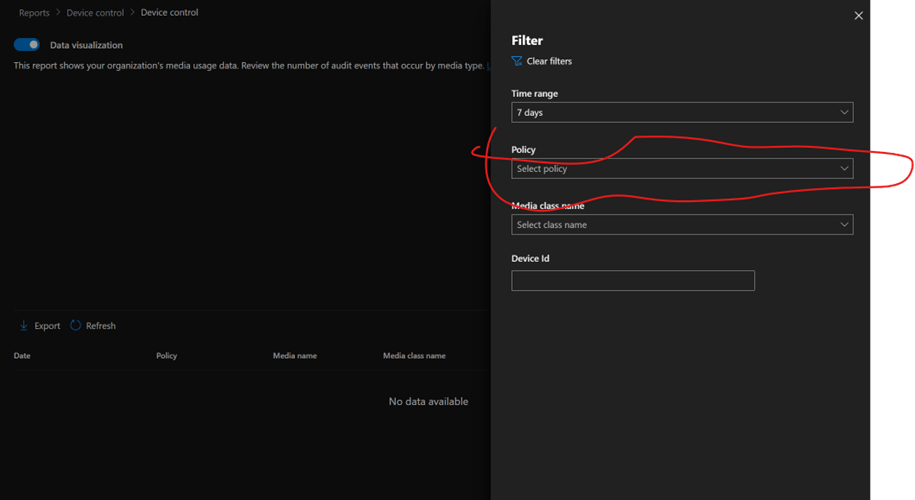
Go to the security center, then reporting, and choose the device control report. Filter by policy name to see results.
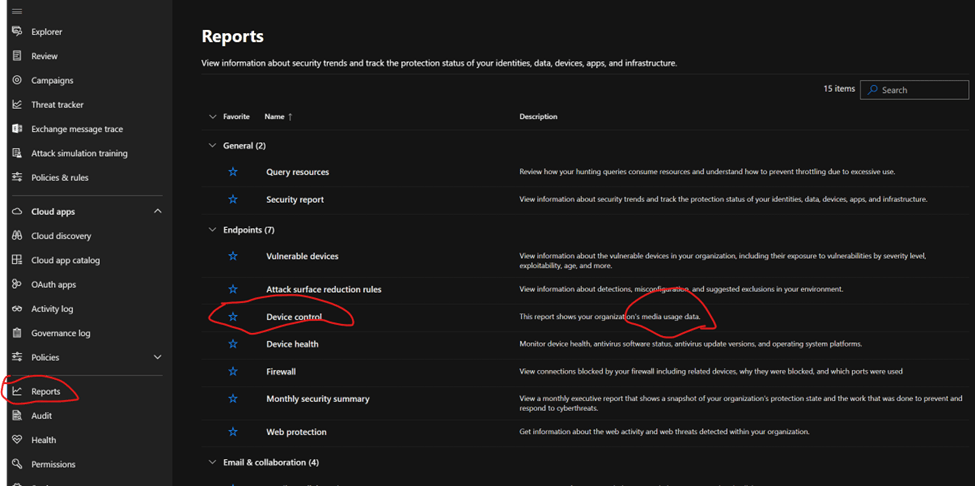
Filter the device control report and choose your policy name to see results
 Microsoft Systems, Cloud and azure professionals